Getting started
This guide installs the VS Code extension, writes a small diagram, arranges it in VS Code, and then checks it and exports it as a picture from the command line.
Install
VS Code extension
Install dg Diagrams from the Extensions view, or with VS Code’s command line:
code --install-extension nvcnvn.dg-diagrams
VSCodium, Cursor and Windsurf install it from Open VSX.
The extension holds its own dg binary and needs nothing else on the machine, and it puts that
dg on the PATH of VS Code’s terminals, so every command in this guide works there.
Command line
Install dg as well to use it outside VS Code’s terminals: in your system’s terminal, in CI, or
from an MCP client that starts it itself (MCP). On Linux and macOS, and
in Git Bash on Windows:
curl -fsSL https://raw.githubusercontent.com/nvcnvn/dg/main/install.sh | bash
The script downloads the release for your machine, checks it
against the release’s checksums, and copies dg to ~/.local/bin, telling you if that directory
is not on your PATH yet. Run it again to update. To choose the release or the directory, set
DG_VERSION or DG_INSTALL_DIR for bash:
curl -fsSL https://raw.githubusercontent.com/nvcnvn/dg/main/install.sh | DG_VERSION=v0.1.2 bash
To install by hand, download the archive for your platform from the
releases page, unpack it, and copy dg to a directory on
your PATH. Either way it is a single binary that holds everything it needs at run time: dg never
uses the network. To draw pictures, dg export also needs Google Chrome or Chromium, which it
drives headless (on Windows, Edge will do). Firefox and Safari do not work.
This dg and the extension’s are separate copies, each updated on its own:
the extension’s guide says how they work together.
Build from source
You need:
- Go 1.27 or newer,
- Node.js 20.19 or newer (on Node.js 22, 22.12 or newer) with npm, which builds the web app that dg embeds,
gitandmake.
git clone https://github.com/nvcnvn/dg.git
cd dg
make build
export PATH="$PWD/bin:$PATH"
dg --help
make build builds the web app and then bin/dg. Add bin to your PATH in your shell’s
profile, or copy bin/dg to a directory already on it.
go install github.com/nvcnvn/dg/cmd/dg@latest does not work: the web app the binary embeds is
built output that the repository does not hold.
Write a model
A dg project is a directory of HCL files. Create one outside the clone of dg, for example in your
home directory (cd ~ first):
mkdir hello
cd hello
echo 'project "hello" {}' > dg.hcl
dg.hcl is the project file. Every setting in it is optional and the file itself is too, but
it is how the VS Code extension knows the folder is a dg project.
Save this as model.hcl:
node "user" {
  label = "User"
}

node "backend" {
  kind  = "group"
  label = "Backend"
}

node "api" {
  kind   = "service"
  label  = "API"
  parent = node.backend
}

node "worker" {
  kind   = "service"
  label  = "Worker"
  parent = node.backend
}

node "orders-db" {
  kind   = "database"
  label  = "Orders DB"
  parent = node.backend
}

edge "user-api" {
  from  = node.user
  to    = node.api
  label = "HTTPS"
}

edge "api-worker" {
  from  = node.api
  to    = node.worker
  kind  = "async"
  label = "jobs"
}

edge "api-db" {
  from = node.api
  to   = node["orders-db"]
}

edge "worker-db" {
  from = node.worker
  to   = node["orders-db"]
}
Each node and edge block is labeled with its ID. The ID never changes when the label does,
and nothing in it says where a node sits: parent = node.backend puts the API inside the
backend, which can hold other nodes because its kind, group, is a container. service,
database, group and async are kinds of the built-in generic pack;
the kind decides how a node is drawn, so the model holds no colors, shapes or positions.
Styles change how kinds look. Save this as style.hcl to draw asynchronous edges purple:
edge_style "async" {
  stroke = "#9334E6"
}
The same files are in examples/hello.
See and arrange it
Open the hello folder in VS Code, open model.hcl, and click Open diagram at the top right of
the editor. The diagram opens in a panel beside the text. With nothing arranged yet, the view is
laid out automatically:
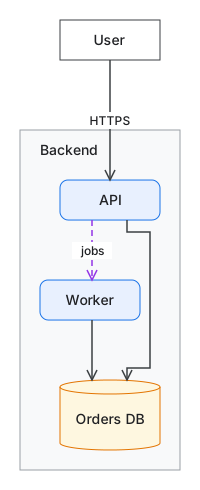
Drag the Worker 100 pixels to the right. The first drag pins every node where it is drawn, and
dg writes the positions to views/main.layout.yaml, the layout file of the view main (a
project without views has that one view of everything):
version: 1
place:
  api: {in: backend, x: 20, y: 0}
  backend: {x: 10, y: 120}
  orders-db: {in: backend, x: 20, y: 200}
  user: {x: 50, y: 10}
  worker: {in: backend, x: 100, y: 100}
Positions are on a 10-pixel grid and relative to the container a node is in, so moving the backend changes one line. Edges are not in the file: they are routed around the boxes every time the view is drawn.
Keep the panel open and edit model.hcl: when you save, the drawing updates. The panel also edits
the model itself: drag a kind from the palette to create a node, press C to draw edges,
double-click a label to change it. The editor reference lists every gesture.
Without VS Code, dg serve opens the same editor in your browser, and Ctrl+C stops it.
Check it
The extension shows the project’s errors and warnings as you type. In a VS Code terminal, the same check is:
dg check
It prints:
style.hcl:1:1: info: Overridden definition: The edge_style "async" overrides the properties it sets of the one defined at <generic>/style.hcl:169:1.
dg check reports errors, warnings and information with file, line and column, and exits with 1
when there are errors. This project has one piece of information: style.hcl overrides the color
of the generic pack’s async edges, as intended. A mistake, such as parent = node.backnd, is an
error naming the line.
Export it
dg export --format svg --out hello.svg
dg export --format png --out hello.png
dg export draws a view in headless Chrome exactly as the editor does and writes SVG, PNG, an
animated GIF or JSON geometry. --view picks a view other than main, and --all --out <dir>
writes every view.
dg fmt formats the HCL files and layout files the way dg writes them; run it before you commit.
Next steps
- Examples shows each kind of diagram dg draws, with its HCL.
- Views explains how to show part of a model, collapse containers and open one view from another.
- Styles lists the shapes, colors and arrowheads, and how to define your own kinds.
- The VS Code extension covers the language server and the panel.
dg opanddg mcplet scripts and agents edit the files with the same operations as the editor.